
Who has access to my projects?
Project Permissions allow administrators to control which users and roles can access a specific project. While most administrators have access to all projects by default, project-level permissions provide additional control over who can view and work on individual projects.
Role management is configured through the Administration area, where administrators can define detailed permissions and control what actions users can perform within projects.
- Restrict access to sensitive projects.
- Allow only selected teams or users to view a project.
- Verify why a user has access to a project.
- Troubleshoot project visibility issues.
Checking Project Access
Follow these steps to determine whether a user has access to a specific project.
Steps
- Open the required Project.
- Navigate to the Project Details tab.
- Click Permissions from the left navigation panel.
- Review the three permission sections available:
- Roles
- Users
- Project Access
- You can add or remove a User/Role too.
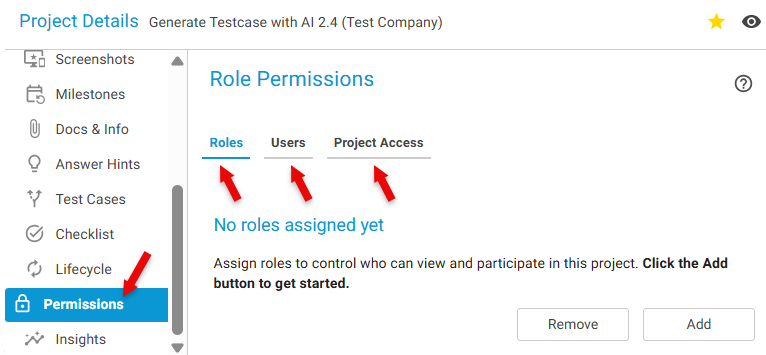
Permission Sections
Roles
The Roles section displays all roles that have been granted access to the project.
Any user assigned to one of these roles to the project will automatically be able to view and access the project.
Example: If the role Project Manager is assigned to the project, all users with the Project Manager role will have access.
Users
The Users section displays individual users who have been granted direct access to the project.
This allows administrators to provide project access to specific users without granting access to everyone within a role.
Example: An External Tester may be given access to a single project without being assigned to a broader project role.
Project Access
The Project Access section provides a consolidated view of all users who can access the project.
In addition to listing users, this section explains why each user has access to the project.
This is particularly useful when troubleshooting access-related questions.
Understanding Access Reasons
A user may appear in the Project Access list for one or more of the following reasons:
Access Through Role: The user has been assigned a role that has permission to access the project.
Example: The user belongs to the Project Manager role, which is included in the project's Roles section.
Direct User Assignment: The user has been individually assigned to the project through the Users section.
Example: A consultant requires access to a specific project but is not part of a project-wide role.
Administrator Access: The user is an Administrator with permissions that automatically grant access to projects across the organization.
In most environments, administrators do not need to be manually added to individual projects.
Multiple Access Sources
A user may have access through more than one source.
Example:
A user may:
- Belong to a role that has project access.
- Be directly assigned to the project.
- Hold administrator privileges.
The Project Access section helps identify all applicable access paths.
Best Practices
- Grant access through Roles whenever possible to simplify management.
- Use Direct User Assignments only for exceptions or temporary access requirements.
- Periodically review project permissions to remove unnecessary access.
- Use the Project Access view when investigating why a user can or cannot see a project.
Notes
Important: Removing a user from the Users section may not remove access if the user still has access through a role or administrator permissions.
Tip: When troubleshooting access issues, always review the Project Access section first, as it provides the complete access summary and the reason each user can view the project.
Example Use Case
A user reports that they can see a project even though they were removed from the project's Users list.
To investigate:
- Open the project's Permissions page.
- Review the Project Access section.
- Locate the user in the access summary.
- Check the Reason for Access column.
- Identify whether access is being granted through a role assignment, direct assignment, or administrator privileges.
This provides a quick and accurate way to determine how project access is being inherited and where changes need to be made.