
Repeat Test Run in SurveyTester
Repeating a test run is a powerful feature in SurveyTester that simplifies the process of re‑testing specific parts of a survey. It allows testers to automatically recreate a previously completed test scenario within seconds and resume testing at any desired question. This is especially helpful when verifying fixes applied to issues found later in the survey.
Let us understand this with a help of an example -
If an issue is reported on a question located near the end of the survey, the tester does not need to manually navigate through every question again. Instead, after the programmer resolves the issue, the tester can:
- Select a previous test run.
- Repeat it.
- Automatically progress through the survey until the desired question.
- Resume manual testing from that point, with all previous answers preserved exactly as in the original test run.
How to Repeat a Test Run
Step 1: Select the Test Run
From the list of completed test runs, choose the test run you want to repeat.
Step 2: Click the Repeat Button
Click the Repeat button to initiate the repeat process.
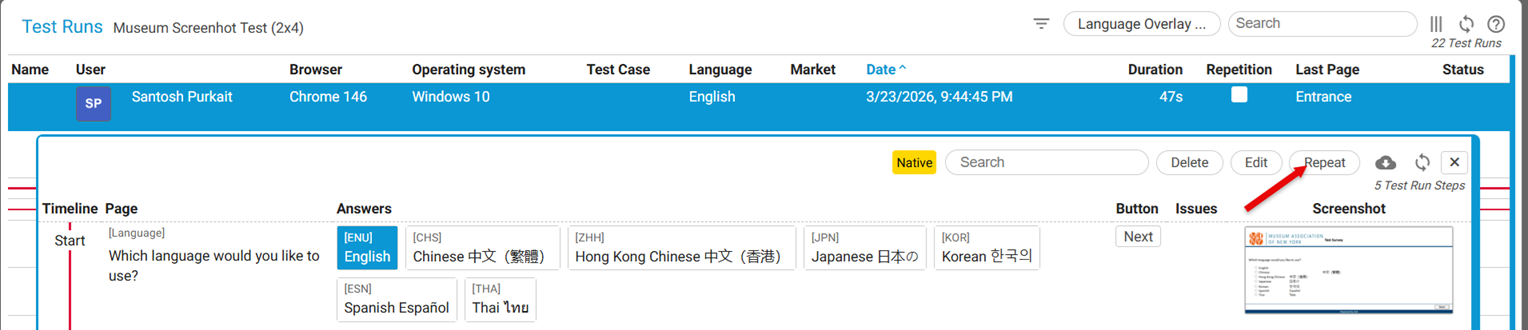
Step 3: Choose the Question to Stop At
A pop‑up window will appear. Select the question at which you want SurveyTester to stop auto‑answering.
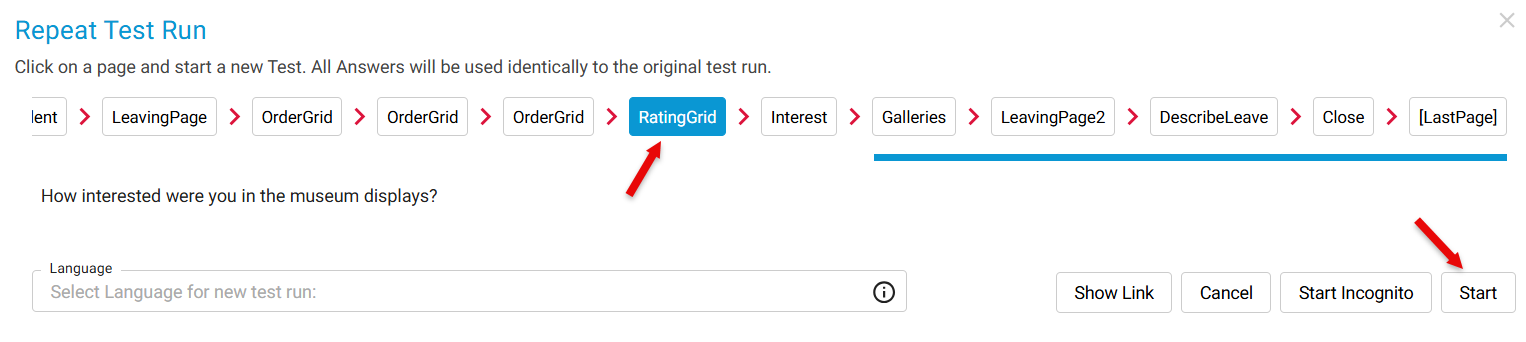
SurveyTester will begin auto‑answering the survey and will display a status screen containing the message: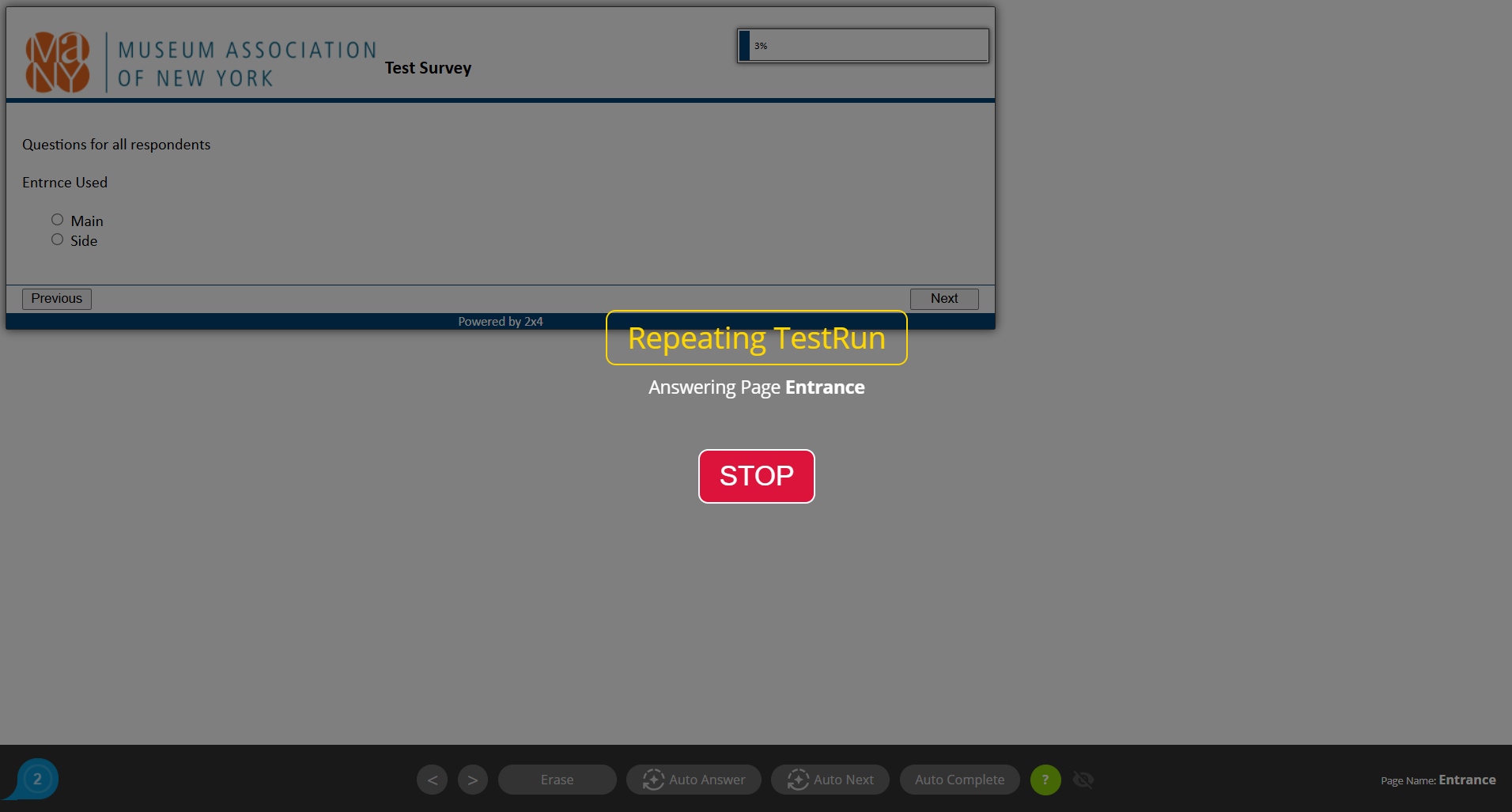
The system will automatically progress through the survey until it reaches your selected question.
Step 4: Resume Manual Testing
When auto‑answering stops at the selected question, you may continue testing manually from that point onward.
Indicators of Repeat Mode
While SurveyTester is running in Repeat Mode or Auto Answer Mode, the following buttons will display the Auto Run icon:
- Auto Answer
- Auto Next
- Auto Complete
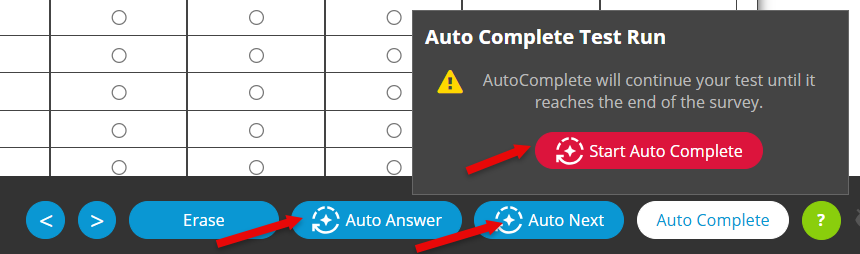
These indicators confirm that the test run is currently executing in Repeat Mode.