Using Issue Filters
Issue Filters allow you to narrow down the list of issues displayed under the Issues tab. By applying filters, you can quickly locate a specific issue or group of issues that match certain criteria.
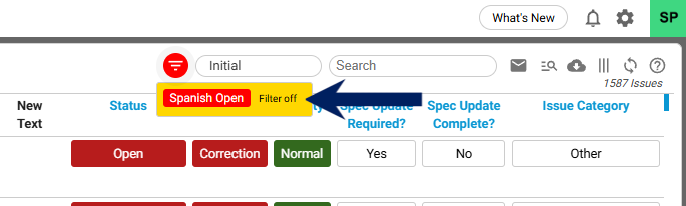
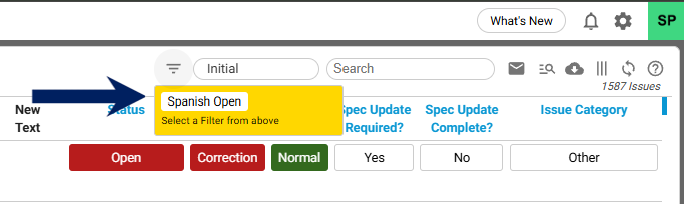
For example, if you want to view only open issues related to the Spanish language, you can create a filter to display exactly that.
Creating a Filter
-
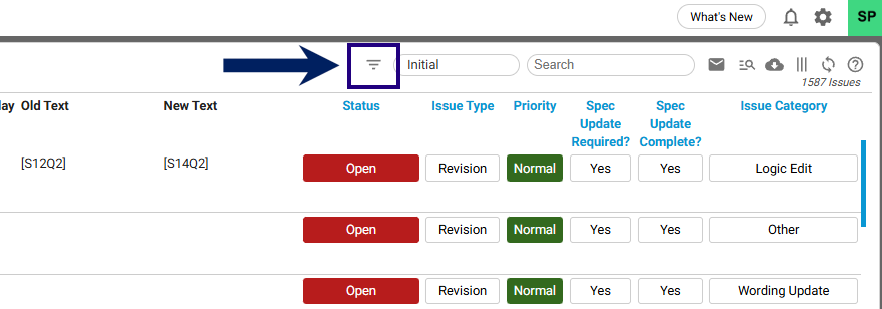
Go to the Filter option
Navigate to the Issues tab and select the Filter option.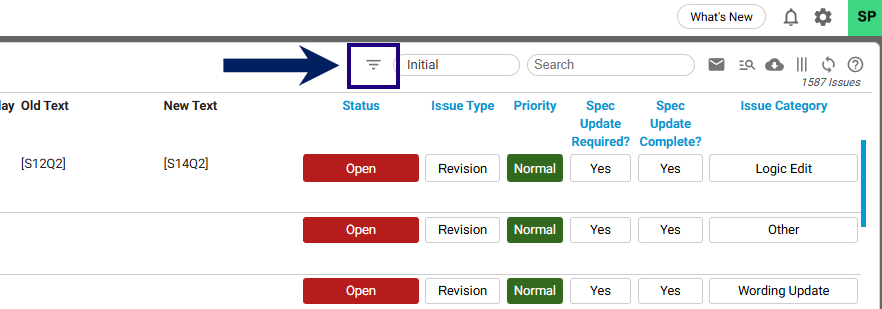
-
Enter filter details
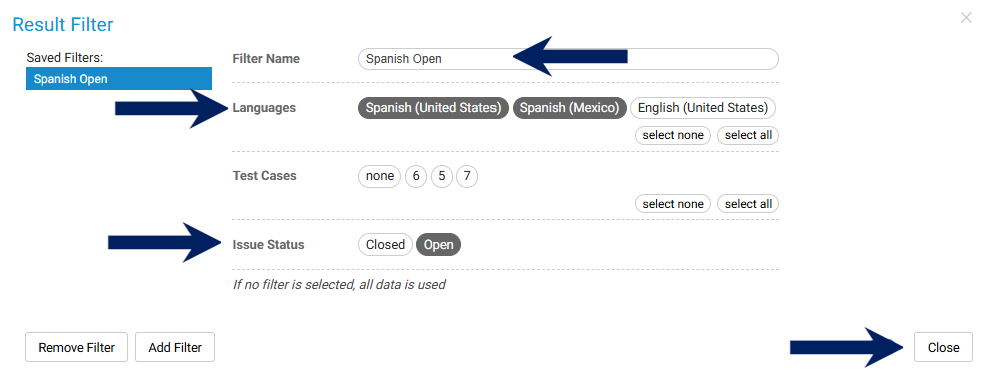
Provide the following information:- Filter Name – A descriptive name for your filter.
- Language – Select the language associated with the issue(s).
- Issue Status – Choose the status (e.g., Open, Closed).
- Close – Confirm and Close the filter to save.
-
Activate the filter
Hover your mouse over the Filter icon. A list of available filters will appear.
Select the desired filter from the list to apply it.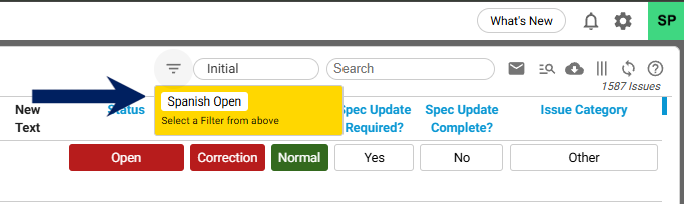
Managing Multiple Filters
- If more than one filter exists, you can toggle between filters or turn off a filter to adjust the displayed issues.
- Only the active filter will determine which issues are shown.