
Exporting Issues to Excel
Once issues are logged in SurveyTester, users have the option to export them into an Excel file for further analysis or reporting. You can either export all issues or apply filters to download only specific records based on your requirements.
Steps to Export Issues
Follow the steps below to export issues:
-
Go to the Issues tab
Navigate to the Issues sectionfrom the main menu. -
Apply Filters (Optional)
Usethe available filtersto refine the list of issues based on your desired criteria(e.g., status, date, severity, etc.). -
Click the Download Icon
Locate and click on the download/export icon. -
SelectStandard Excel Download
Choose the “Standard Excel Download” option on the pop-up window to export the data.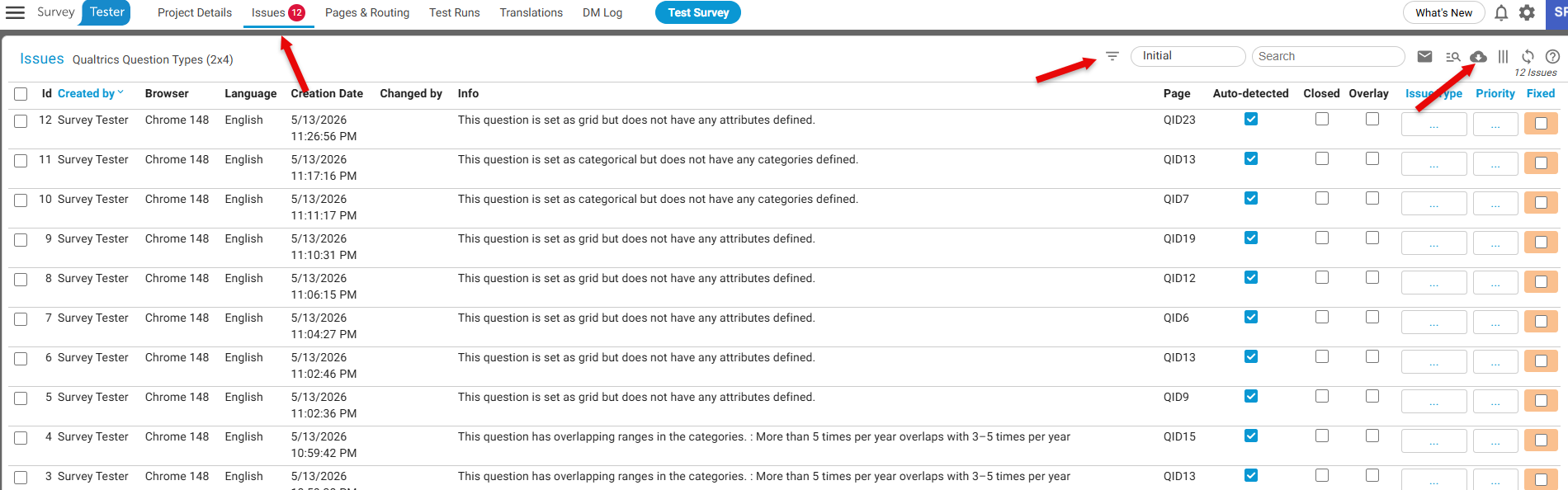
Customizing Exported Columns
If you want to export only specific columns:
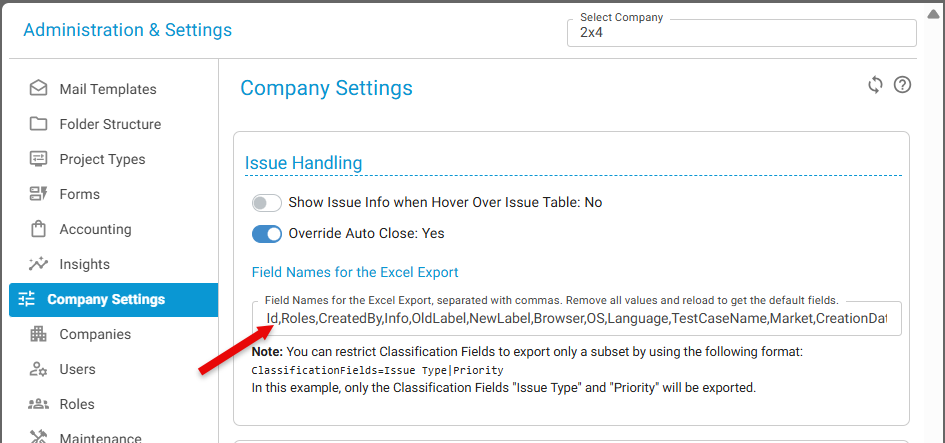
- Go to Company Settings
- Modify the column selection for issue exports
- Save your changes
- The export will reflect the selected columns in future downloads
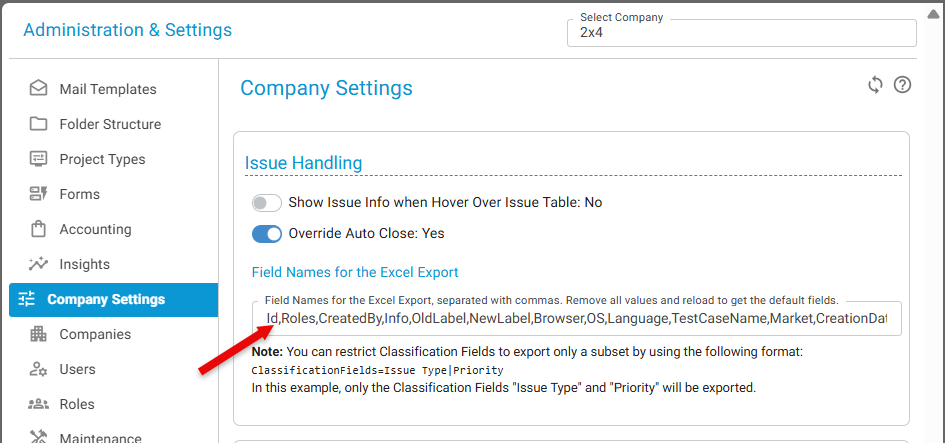
Please Note:
-
The default columns are:
Id, Roles, CreatedBy, Info, OldLabel, NewLabel, Browser, OS, Language, TestCaseName, Market, CreationDate, LastChange, LastChangedBy, Page, IsTechnicalIssue, IsOverlayIssue, IsClosed, ClassificationFields, Comments, ChangeHistory, Screenshot -
You must not change the names of the fields.
-
However, you can remove any fields from this list as per your requirements.
Notes
- If no filters are applied, all issues will be exported by default.
- Filtered exports will only include the issues visible based on your selected criteria.