Export Screenshots
Export Screenshot in SurveyTester
SurveyTester stores the HTML output from the browser and reuses this code on different physical and virtual devices during both manual and automated survey tests. Screenshots are generated across range of devices used during testing can be exported to view and share offline.
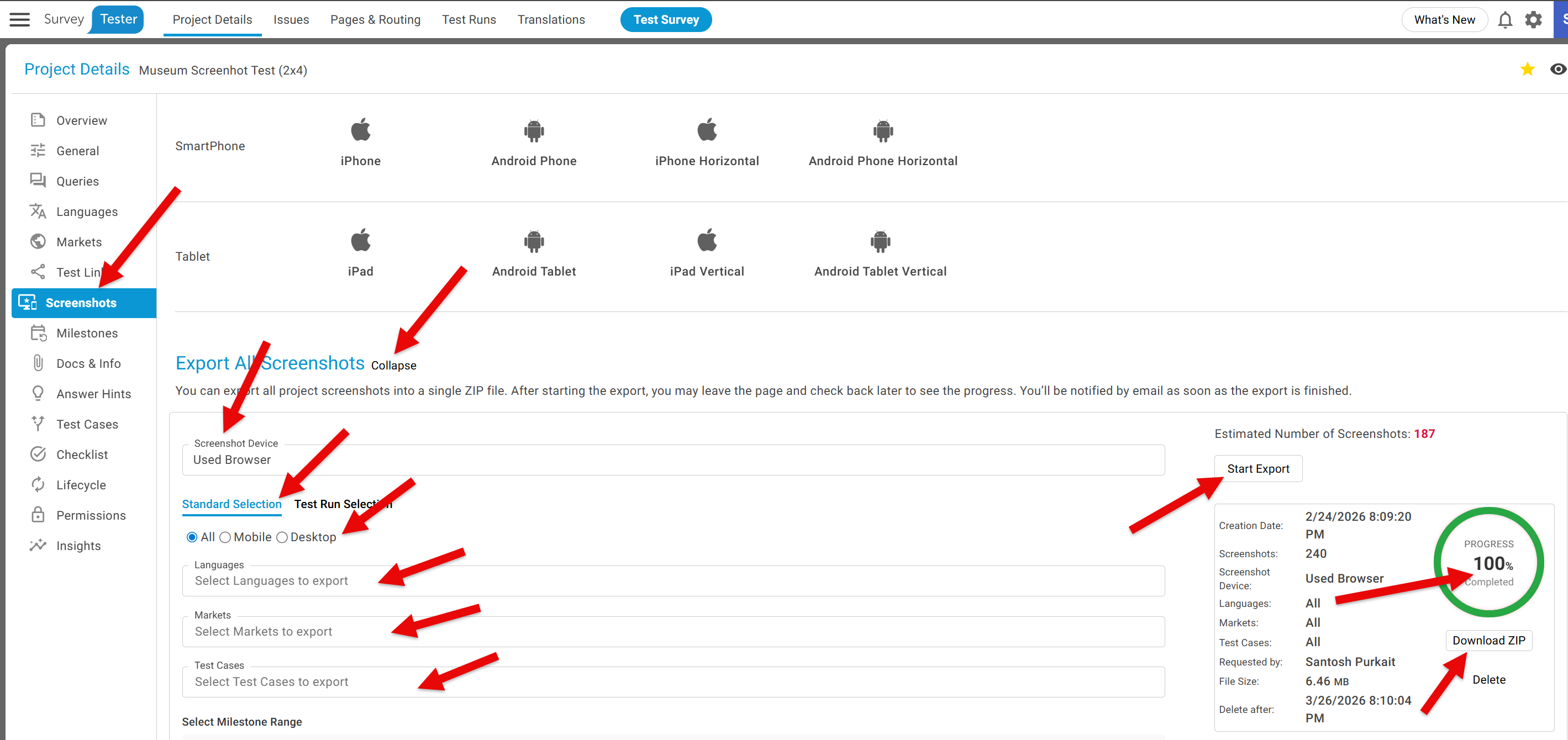
Exporting Screenshots in SurveyTester
Steps to Export:
Progress Tracking:
- The export progress is displayed in the window.
- Once the export reaches 100%, a Download Zip button will appear.
- Click Download Zip to retrieve all exported screenshots.
Steps to View:
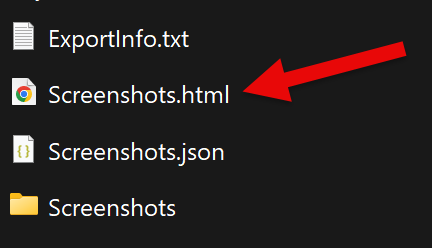
- After downloading the exported ZIP file, unzip it to a folder on your computer.
- Open the file named
Screenshots.htmlinside the extracted folder. - This file will display all the downloaded screenshots in a structured view.
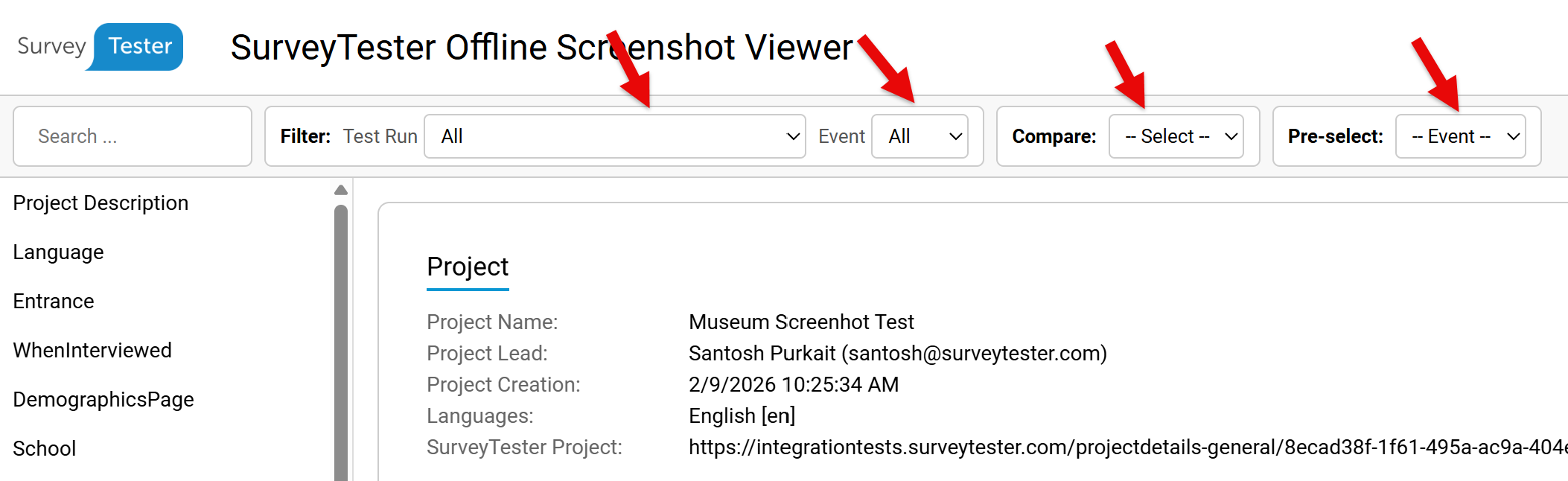
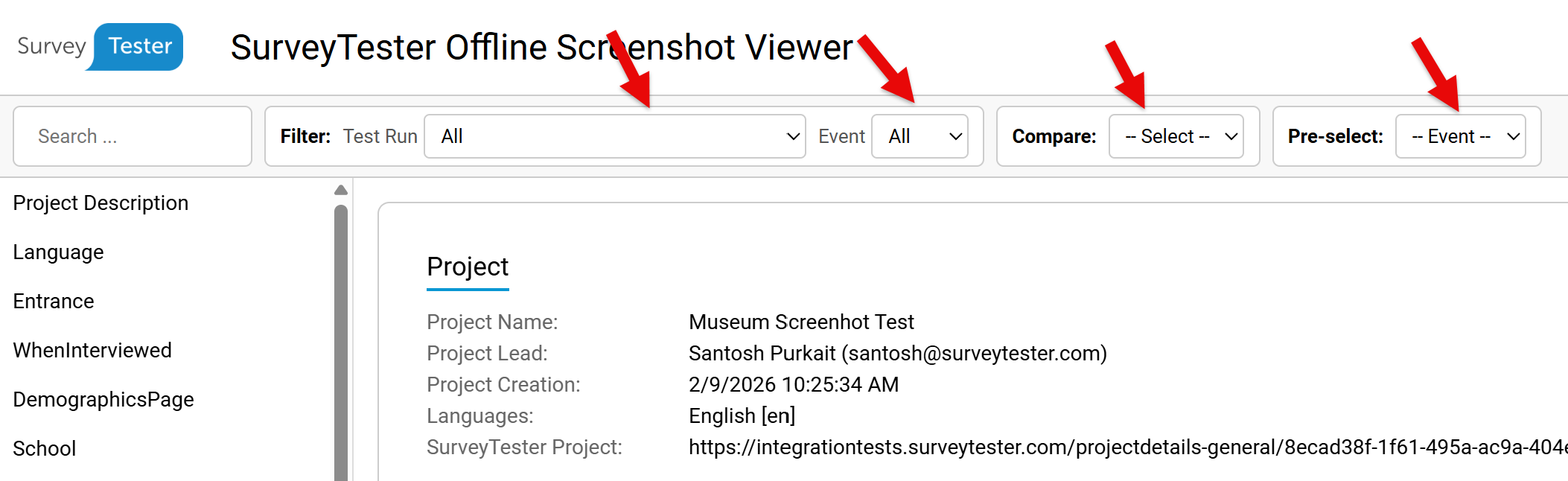
- Filtering Options:
- You can filter screenshots to display only those from a specific test run.
- Events of Screenshots:
- Entry Screenshots – captured when the page loads.
- / Exit Screenshots – captured when the page unloads.
- Comparison Features:
- Screenshots can be compared either by individual test runs or by events, allowing testers to quickly identify differences and validate survey behavior.