Creating New Issue
Logging and Managing Issues During Survey Testing
The Issues feature allows testers to log, track, and review issues identified while testing a survey. Issues can be created directly from the survey interface and managed through the Issues tab.
When to Use This Feature
Use the Issues feature whenever you identify a problem during survey testing, such as:
- Incorrect survey logic
- Display or formatting issues
- Missing translations
- Validation errors
- Data collection issues
- Any other survey-related defects
Create a New Issue
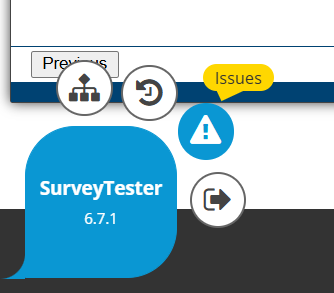
- Locate the blue bubble in the bottom-left corner of the screen.
- Click the blue bubble and select the Issues icon to open the Issues window.
- Click Create New Issue.
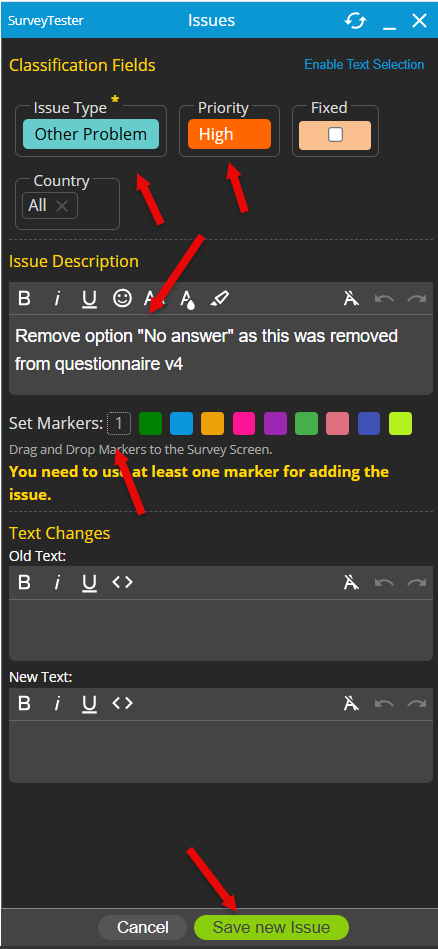
- Complete the issue details by entering the required information.
- After completing the required fields, click Save New Issue.
Issue Fields: Depending on your company's configuration, the available fields may vary. Common fields include:
| Field | Description |
|---|---|
| Issue Type | Select the category that best describes the issue. |
| Priority | Specify the severity or urgency of the issue. |
| Country | Select the country or market where the issue was identified. |
| Description | Provide a detailed explanation of the issue, including the observed behavior and expected behavior. |
| Markets | Select the applicable market(s) for the issue. |
| Additional Classification Fields | Complete any company-specific classification fields that are configured in your environment. |
The issue is created and added to the project's issue list.
View Logged Issues
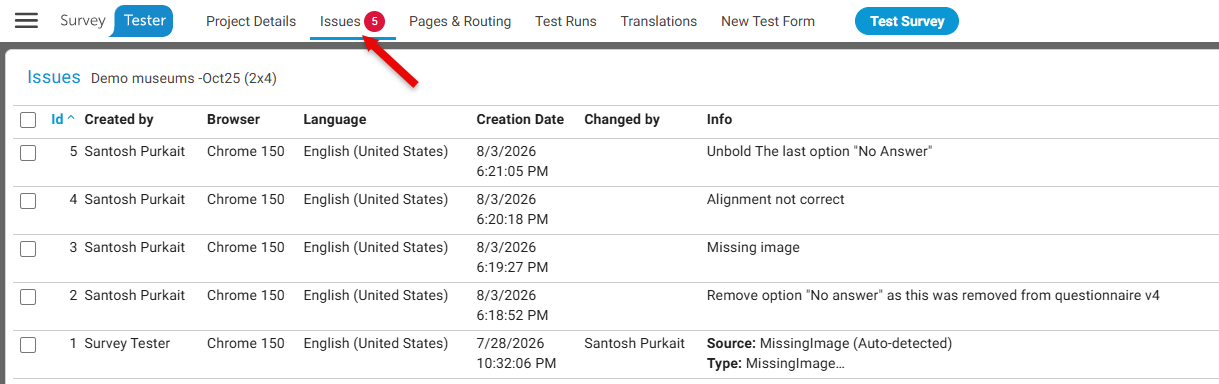
- Open the Issues tab.
- Review the list of all issues logged for the survey.
The Issues tab displays all recorded issues and their associated details.
To view details of the issues logged:
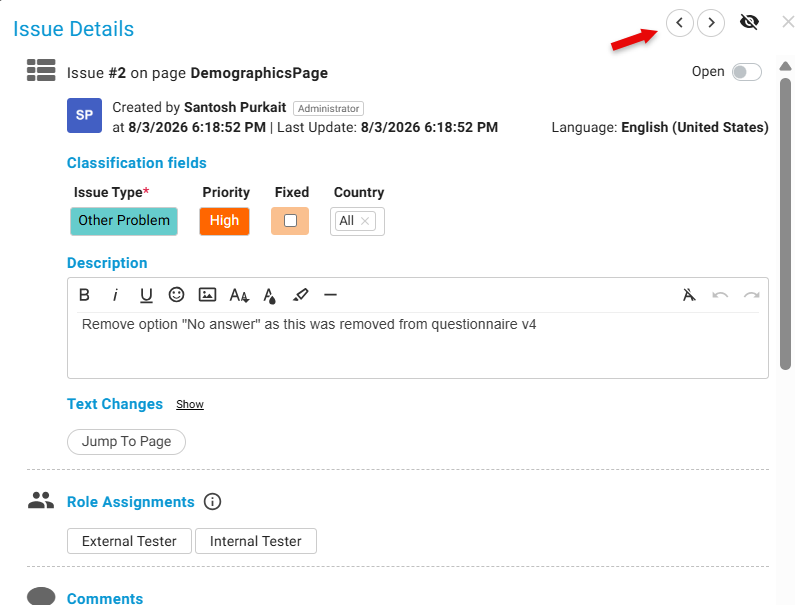
- In the Issues tab, double-click an issue.
- The issue details window opens, displaying the full information for the selected issue.
- Use the navigation buttons to move between issues without returning to the issue list.
Notes
- Issue fields may vary based on your organization's configuration.
- Providing a clear and detailed issue description helps improve issue resolution.
- All saved issues are available from the Issues tab for future review and tracking.
- Navigation controls allow you to quickly review multiple issues sequentially.
Example Use Case
A tester identifies that respondents are incorrectly routed to a screenout page after answering a qualification question.
- The tester opens the Issues window from the blue bubble.
- Clicks Create New Issue.
- Selects:
- Issue Type: Survey Logic
- Priority: High
- Country: UK
- Enters a description explaining the routing problem.
- Selects the affected market and saves the issue.
The issue is immediately available in the Issues tab, where team members can review and track it until resolved.