
Company Setting for Fields on the Issues Page
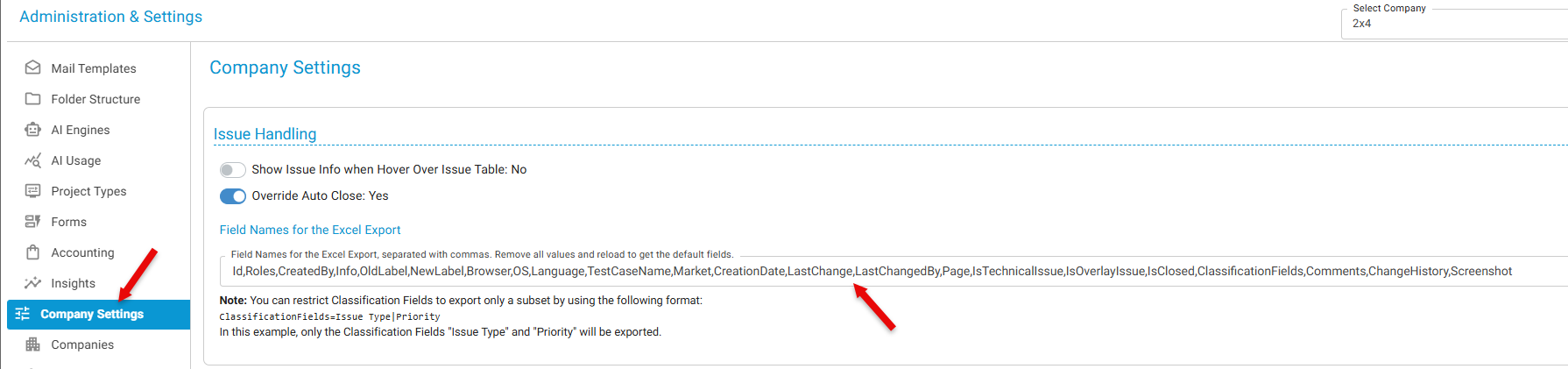
The fields displayed on the Issues page are configured at the company level under Company Settings > Issue Handling > Field Names for the Excel Export. These settings define the default fields available for issue display and export.
By default, the following fields are configured:
Id,Roles,CreatedBy,Info,OldLabel,NewLabel,Browser,OS,Language,TestCaseName,Market,CreationDate,LastChange,LastChangedBy,Page,IsTechnicalIssue,IsOverlayIssue,IsClosed,ClassificationFields,Comments,ChangeHistory,Screenshot
Customizing Fields for a Project
Users can customize which fields are displayed on the Issues page for individual projects.
To customize issue fields:
- Open the desired project.
- Navigate to the Issues tab.
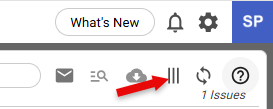
- Click the three vertical bars (column settings menu).
- Select the fields you want to display or hide.
- Drag and drop fields to change their display order.
- Save your changes.
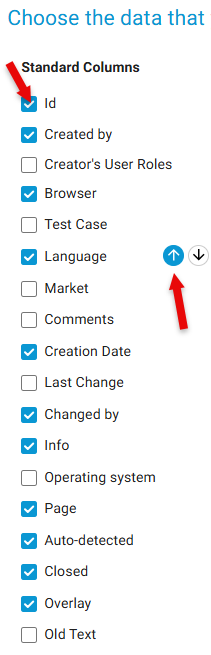
The selected fields and their order will be:
- Displayed on the Issues page.
- Used when exporting issues from the Issues tab to Excel.
Notes
- Company-level settings define the default list of available fields.
- Project-level customization allows users to tailor the visible fields without affecting the company default configuration.
- Any changes made through the column settings menu apply to both on-screen display and Excel exports for that project.
User can then filter the respective projects to customize what fields to be shown and re-order them as to be shown screen and to be exported from the Issues tab by clicking on the 3 vertical bars