
Auto-Detect Issues
The Auto-Detect Issues feature helps you proactively identify and resolve common survey problems that may negatively impact respondent experience and data quality. When enabled, SurveyTester automatically scans your survey for structural, formatting, and content-related issues.
Using this feature during testing allows you to detect and fix problems early, ensuring a smoother survey experience and more reliable data collection.
Configuration Auto-Detect Issues can be:
- Enabled or disabled at the Company level (default setting), or
- Configured individually at the Role level, or
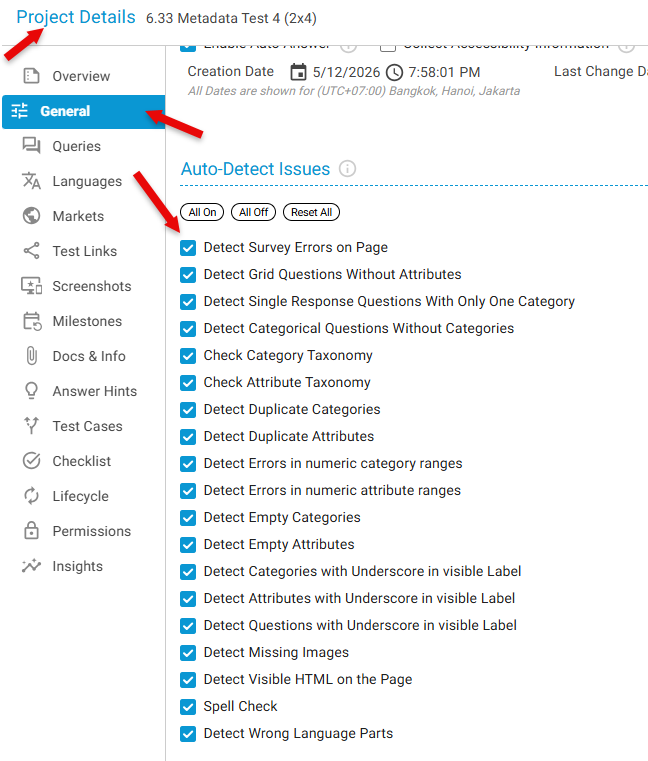
- Configured individually at the Project level
Available Checks
1. Detect Survey Errors on Page: Scans the rendered survey page for error messages generated by the survey engine, such as:
- Script errors
- Missing variables
- Routing failures
- Runtime warnings
Any issues visible to respondents or testers are reported.
2. Detect Grid Questions Without Attributes
Identifies grid (matrix) questions that do not contain any rows (attributes).
Such questions are considered incomplete and cannot function correctly.
3. Detect Single Response Questions With Only One Category
Flags single-select questions that provide only one answer option.
These questions cannot capture meaningful input and typically indicate a configuration error.
4. Detect Categorical Questions Without Categories
Detects categorical questions (single-select or multi-select) that do not have any answer options defined.
5. Check Category Taxonomy
Ensures consistency across answer category labels by verifying:
- Capitalization style
- Punctuation
- Sentence structure
- Prefixes and suffixes
Any inconsistencies (e.g., mismatched casing or punctuation) are highlighted.
6. Check Attribute Taxonomy
Applies the same consistency checks as Category Taxonomy, but to grid attributes (rows).
7. Detect Duplicate Categories
Identifies duplicate answer options within the same question based on identical labels.
8. Detect Duplicate Attributes
Identifies duplicate rows (attributes) within the same grid question.
9. Detect Errors in Numeric Category Ranges
Validates numeric ranges in answer categories and reports:
- Overlaps (including shared boundaries, e.g., 10–20 and 20–30)
- Gaps (e.g., missing ranges such as 21–30 between 10–20 and 31–40)
This helps ensure proper grouping for responses like age, income, or usage ranges.
10. Detect Errors in Numeric Attribute Ranges
Performs the same numeric validation as above but applies it to grid attributes.
11. Detect Empty Categories
Flags answer options that:
- Contain no text
- Include only whitespace
- Contain formatting without visible content
12. Detect Empty Attributes
Flags grid rows that do not contain any visible label.
13. Detect Categories with Underscore in Visible Label
Identifies answer options containing underscores (e.g., age_group) in visible text.
This often indicates unresolved variables or placeholders.
14. Detect Attributes with Underscore in Visible Label
Applies the same underscore detection to grid attribute labels.
15. Detect Missing Images
Checks for image elements that fail to load due to:
- Broken URLs
- Missing files
- Incorrect paths
- Server errors
16. Detect Visible HTML on the Page
Detects raw HTML tags (e.g., <br>, ) that appear as visible text instead of rendering properly, indicating formatting or encoding issues.
17. Spell Check
Checks all visible text on the page for spelling errors. Make sure you run the test in the correct language to get accurate results. Note that this check relies on a dictionary and may not catch all errors or may produce false positives, especially for specialized terminology, brand names, or proper nouns.
18. Detect Wrong Language Parts
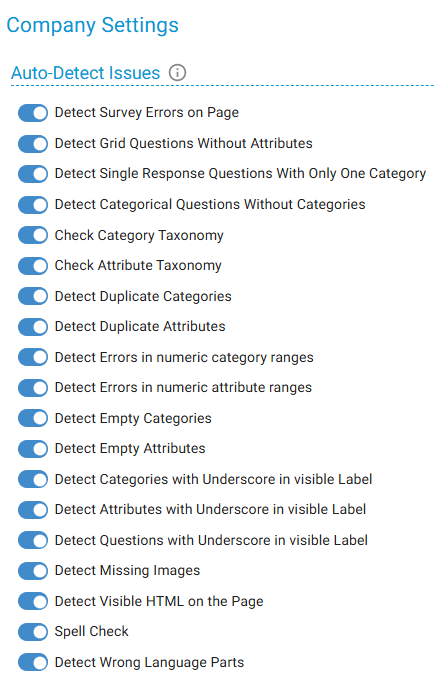
Company Level Setting:
By default, Auto-Detect Issues is enables at company level.
Role Level Setting:
Auto-Detect Issues at role level, is used to Show (Enable) or Hide (Disable) the issues detected in the Issues list. The user will also have permission to manage the auto-detected issues.
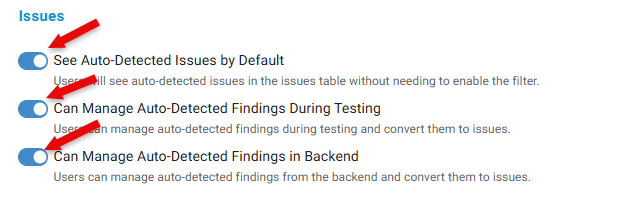
As

Please note: Admin roles will always see Auto-Detected Issues by default.
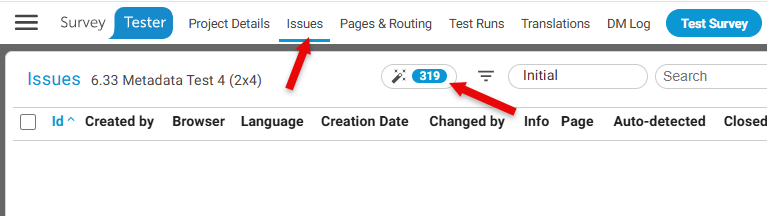
The user can review the auto-detected issues by clicking on the magic wand icon, and select the issues take action to 'Accept' or 'Decline' the selected issues.
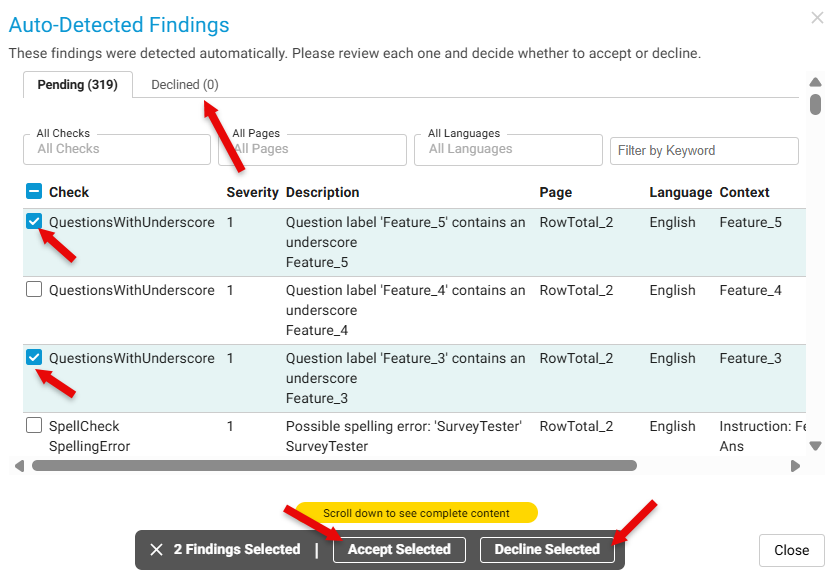
Declined issues can still be retrieved under Declined tab.
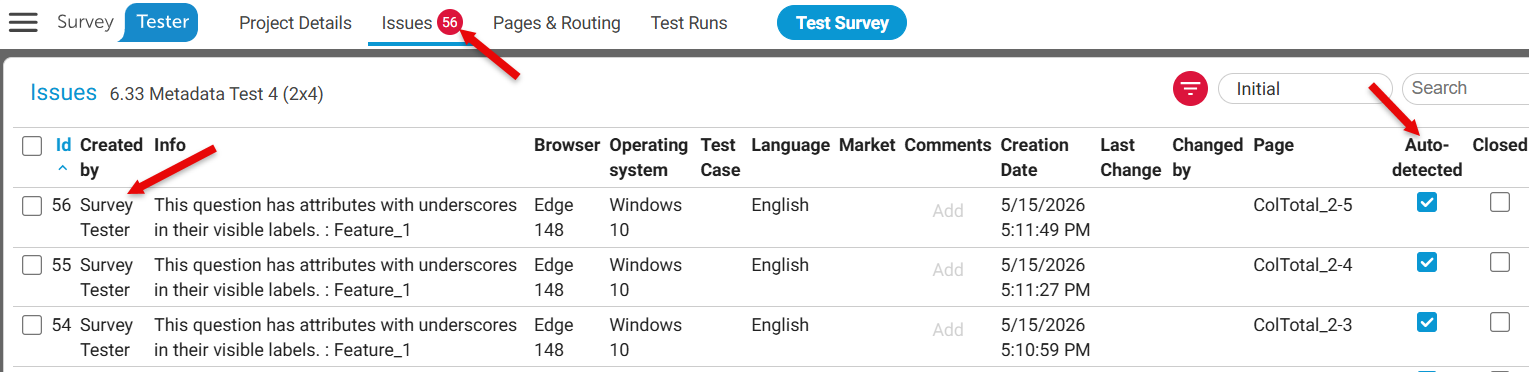
Auto-detected issues can be identified by field Auto-detected.
Project Level Setting:
User can select the needed detection features from the Project Details tab.
Summary
Enabling Auto-Detect Issues helps ensure that:
- Surveys are structurally complete
- Content is consistent and user-friendly
- Technical errors are identified early
This results in a higher-quality survey experience and more accurate data collection.