
Adding/Importing Multiple Markets
The system can automatically create Markets for multi‑market projects by extracting unique market parameters from either test survey URLs or a pasted table (Excel). Use the Test URLs flow when you have sample survey links that include market parameters (for example, country=TH). Use the Table flow when you already have a two‑column list of market names and parameter values.
1.Auto‑Import from Test Survey URLs
Step 1: Open Markets
-
From Project Details, select Markets.
Step 2: Start Import
-
Click Add Multiple Markets
Step 3: Provide Test URLs
-
Paste one or more test survey URLs (one per line) into the input field and click Next.
Step 4: System analysis
-
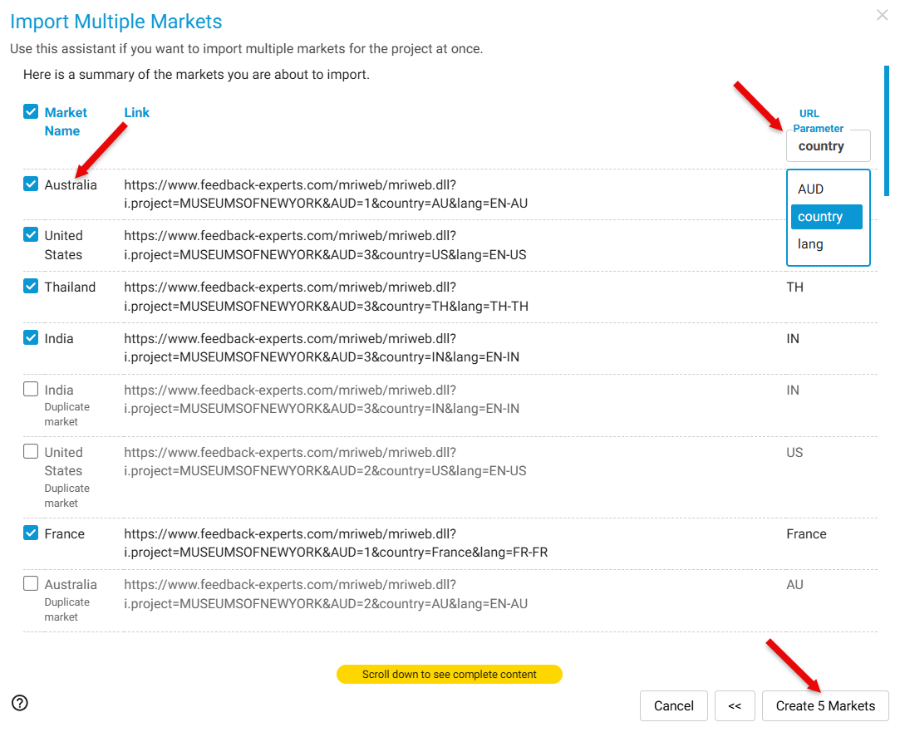
The system parses the URLs and identifies unique market‑related parameters and values (for example, country=TH, lang=en US).
-
You will see a list of discovered parameter names and their unique values, plus a dropdown to choose which parameter should act as the Market variable (for example, country or region).
Step 5 — Create Markets
-
Select the appropriate Market variable from the dropdown.
-
Click Create X Markets to generate Markets from the selected parameter values.
-
Example: the system detects country=TH and creates Market: Thailand (TH).
Example created: country=TH → Market: Thailand (TH) 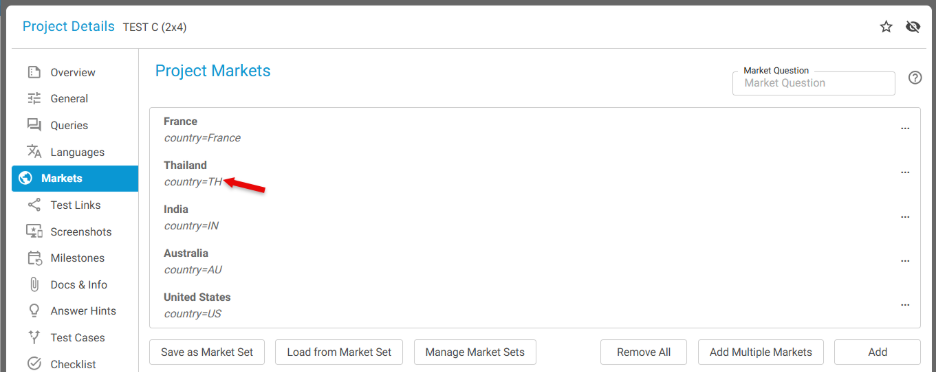
2. Auto-import from a Table
Step 1 — Open Markets
-
From Project Details, select Markets.
Step 2 — Start import
-
Click Add Multiple Markets.
Step 3 — Provide table data (Excel)
-
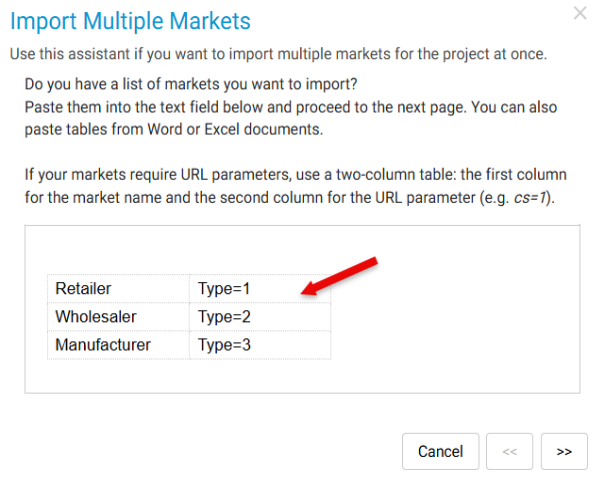
Copy and paste your market data in a two‑column format (Market name, parameter value) and click Next.
Step 4 — System analysis
-
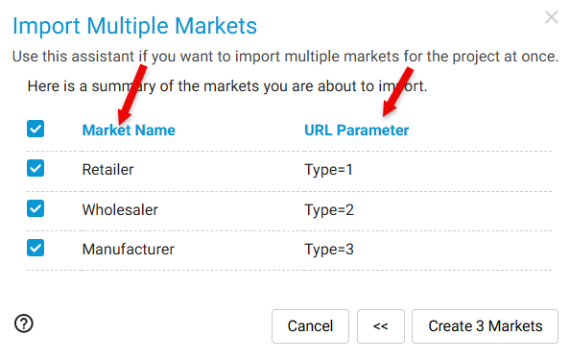
The system reads the pasted table, detects column headings and values, and displays the columns that map to market name and parameter value.
Step 5 — Create Markets
-
Confirm the column mappings, then click Create X Markets to add the Markets to the project.
-
The market information will be created as below -
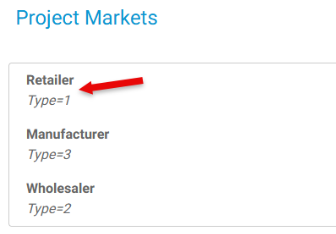
Notes and validation behavior:
-
Preview: Before creation, the system shows a preview of parsed values so you can confirm or edit mappings.
-
Duplicate values: Detected duplicate parameter values will be highlighted for review and resolution.
-
Unrecognized parameters: If the system cannot confidently identify a Market variable, it prompts you to select the correct parameter manually.
-
Display names: The UI offers a way to convert parameter codes into readable display names (for example, TH → Thailand) and to edit display names prior to creation.
Example (URLs)
-
Input:
-
https://survey.example.com/?country=TH&lang=th
-
https://survey.example.com/?country=ID&lang=id
-
Detected parameter: country with values TH, ID.
-
Action: Select country as the Market variable and click Create 2 Markets → Thailand (TH), Indonesia (ID).