Adding Multiple Languages
Auto‑Importing Languages, Markets Using Test Survey URLs
For projects containing multiple languages and multiple markets, you no longer need to manually add each parameter one by one.
The system can now automatically identify uniquelanguage parameter values directly from your test survey URLs and create Languages, and Markets. If you need more parameters you can add those using Test Case.Languages.
1. Importing Multiple Languages
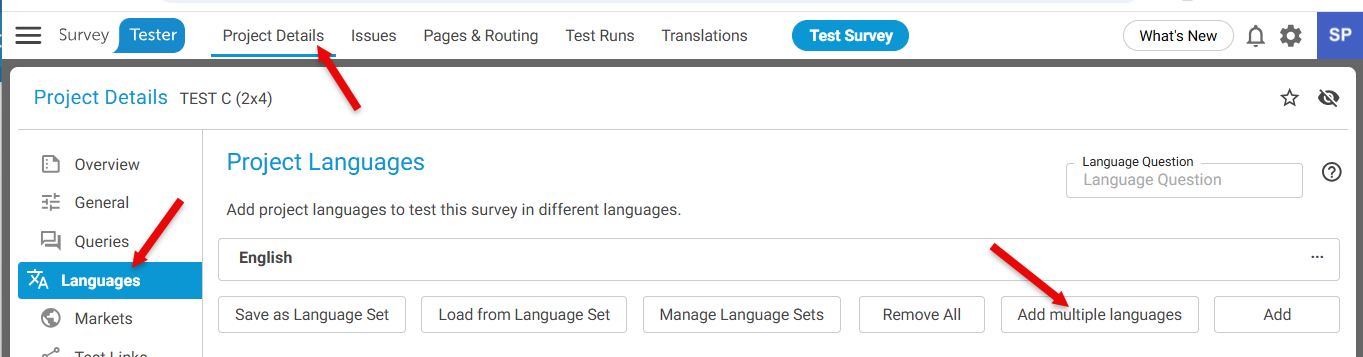
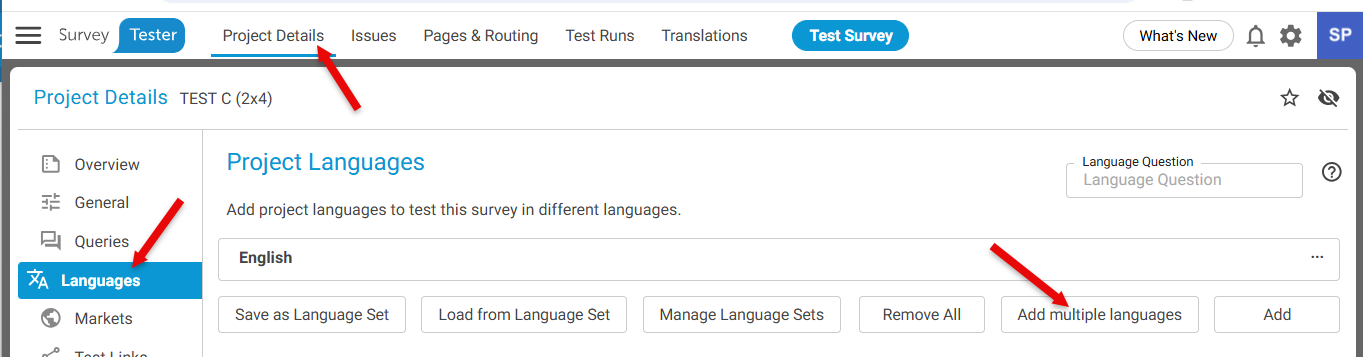
- Go to Project Details
- Select Languages from the left-hand panel
- Click on button Add Multiple Languages
Step 2: Provide Test Survey URLs
- Copy all your test survey URLs
- Paste them into the Import Multiple Languages window
- Click Next
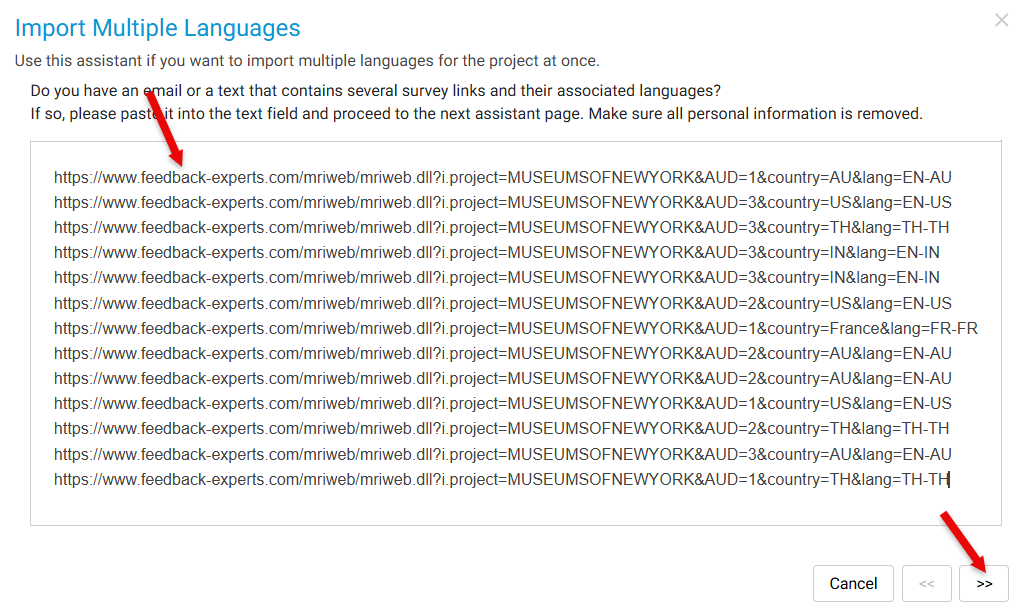
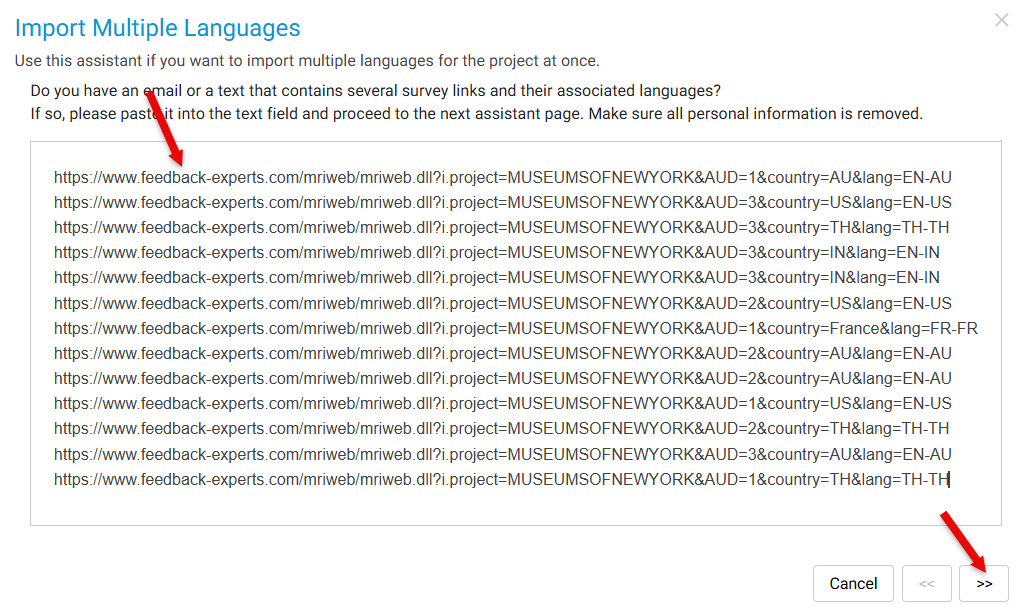
Step 3: System Processing: The system will -
- Scan all provided URLs
- Identify unique ISO language values found in URL parameters
- Ignore duplicates and mark them as “Duplicate language”
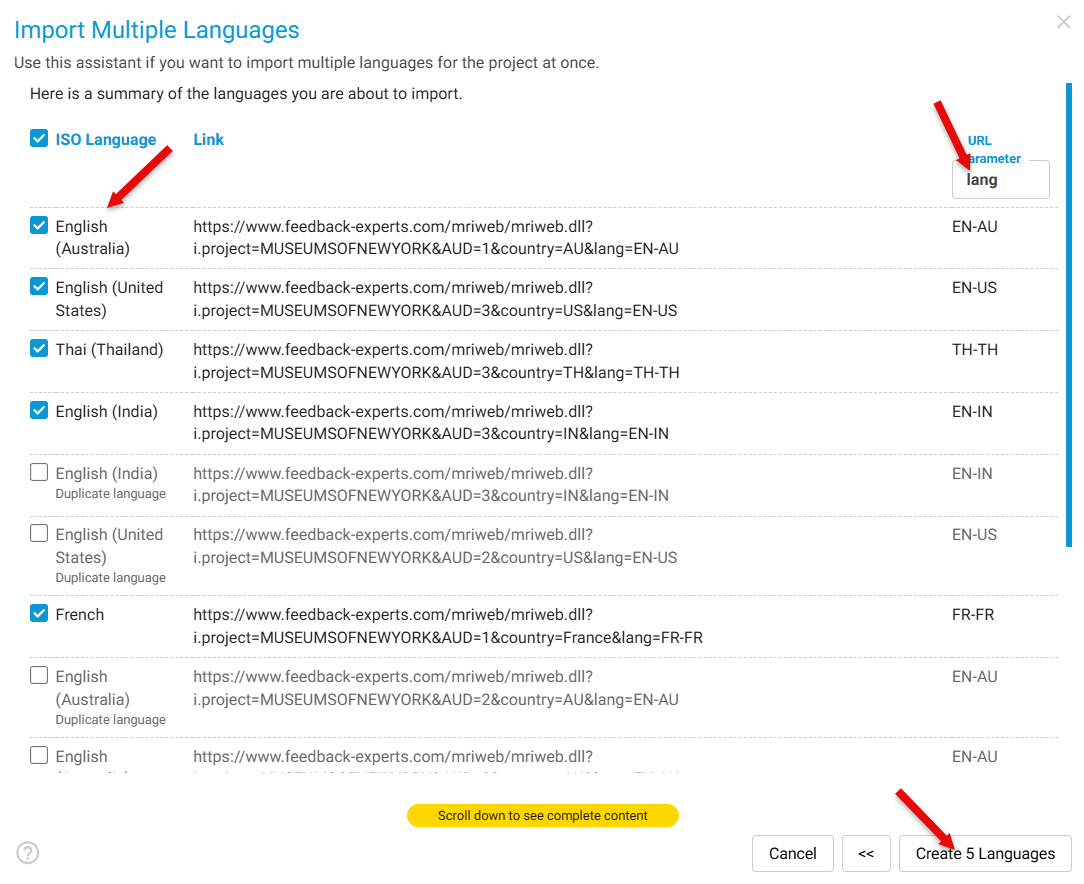
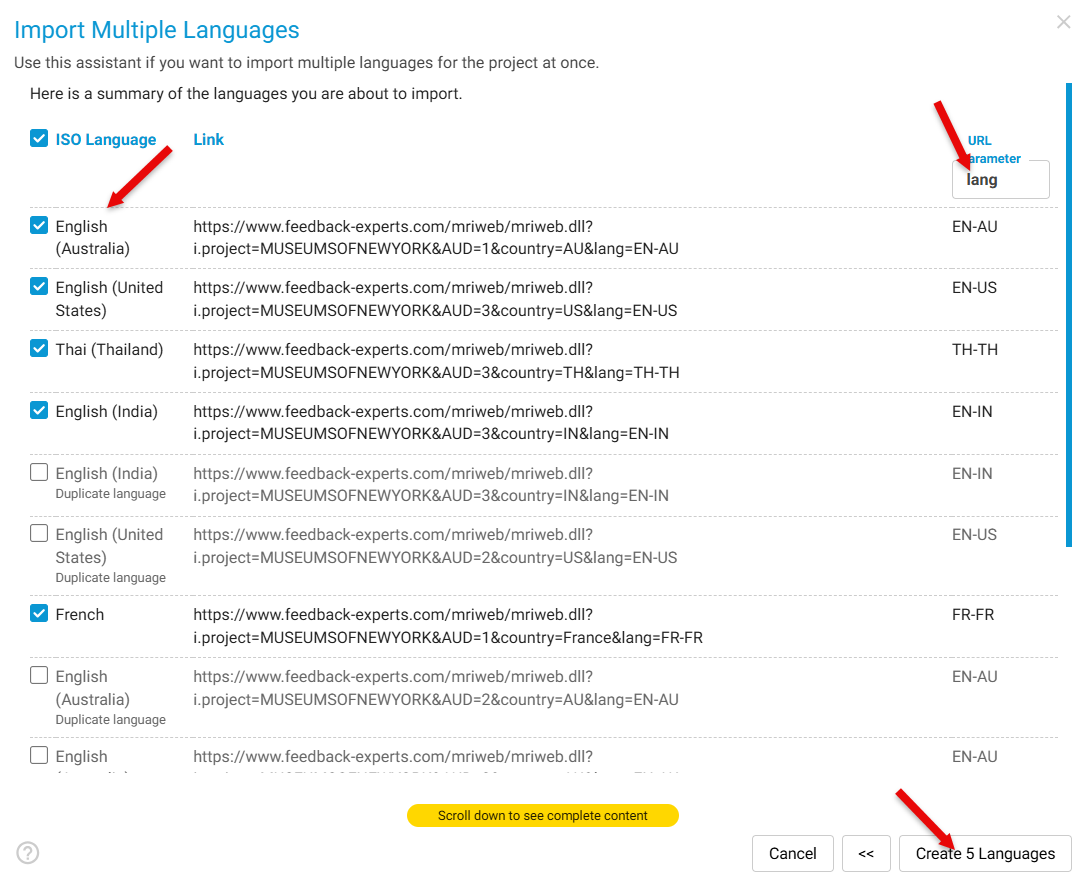
Example parameter found: lang=EN-AU
Step 4: Create the Languages: Click Create x Languages and the system will automatically generate languages using:
- The parameter name
- The language value
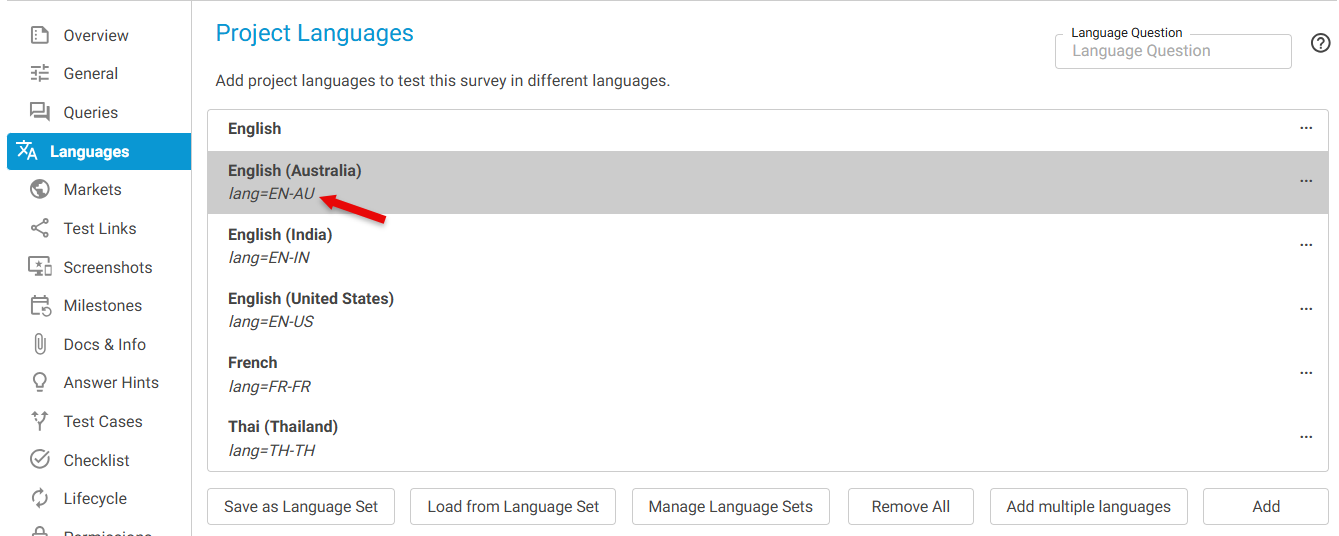
Example created: EN-AU
2. Importing Multiple Markets
Go toProject DetailsSelectMarketsClick on buttonAdd Multiple Markets
Step 2: Provide Test Survey URLs
Copy and paste the sametest survey URLsClickNext
Step 3: System Identification: The system analyzes the URLs and detects unique market-related parameters. You will see:
A list ofunique parameter names and valuesA dropdown to select theMarket variable(e.g., country, region)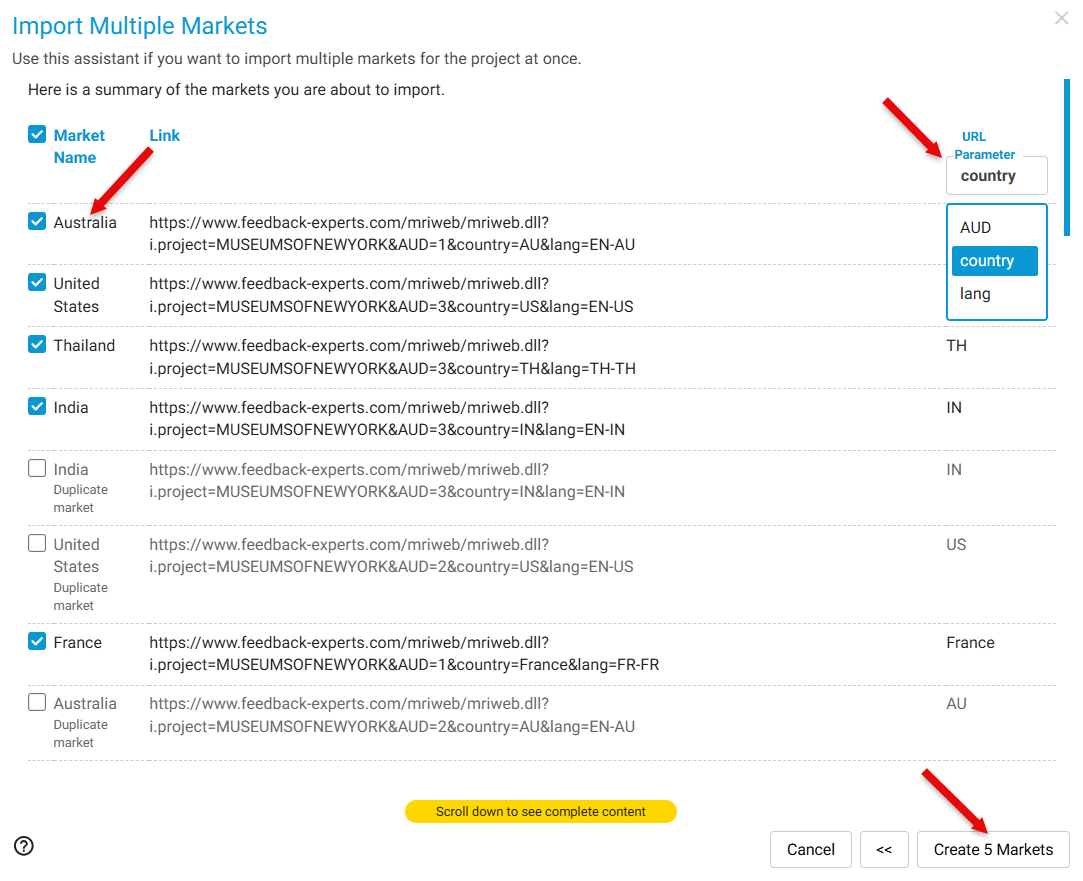
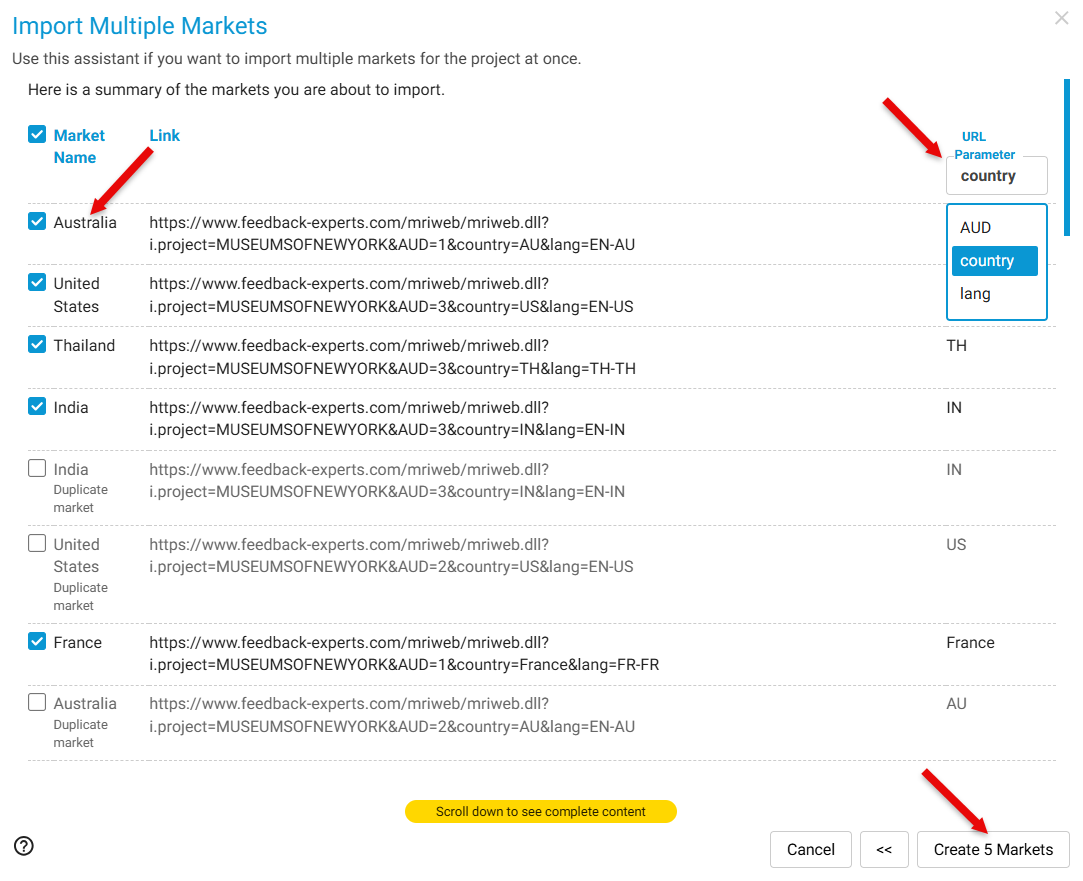
Step 4: Create the Markets
Select the relevant variable (e.g.,country)ClickCreate X Markets
Example created: country=TH → Market: Thailand (TH)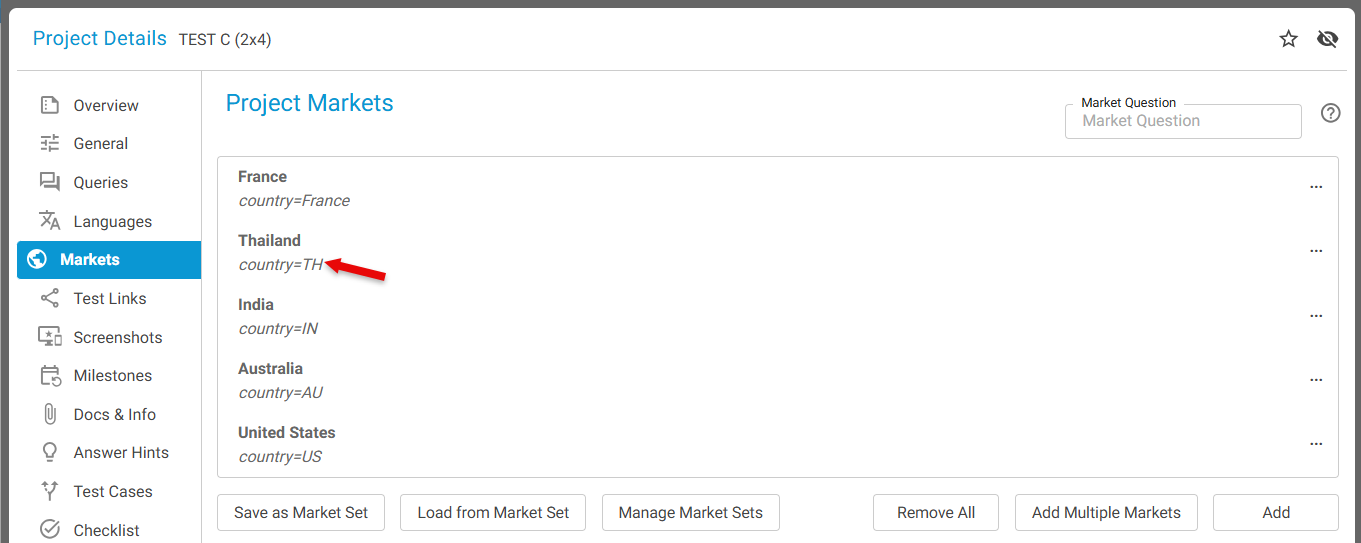
3. Adding Additional Test Cases
If you have more parameters (e.g., device type, channel, custom routing values), you can add them manually.
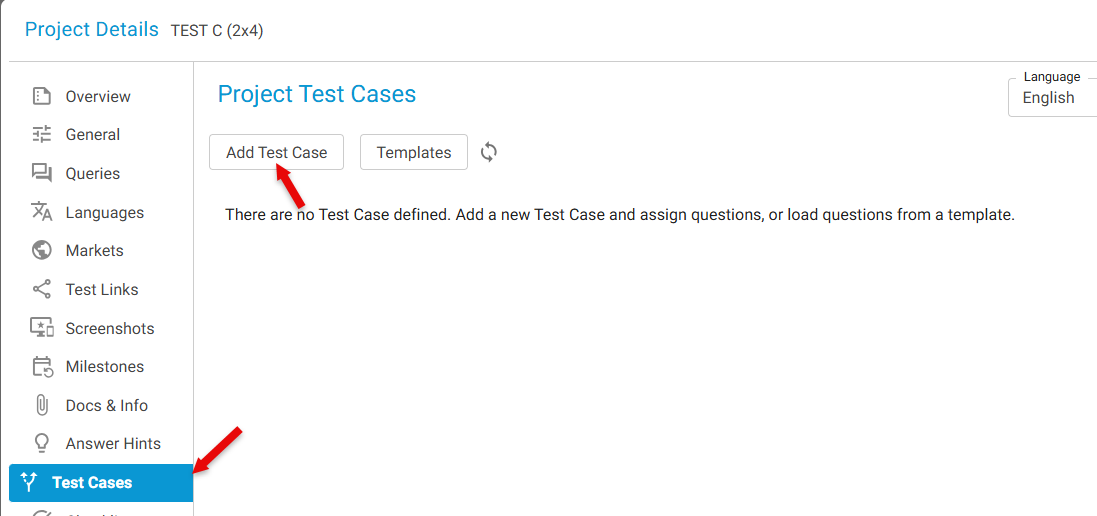
Step 1: Open Test Cases
InProject Details, selectTest Casefrom the left panelClickAdd New Test Case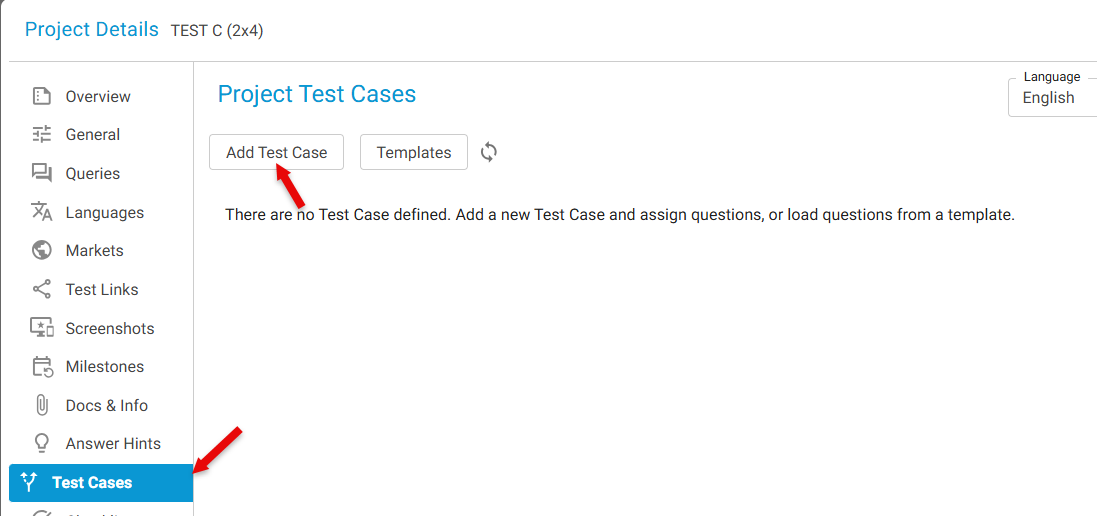
Step 2: Provide Test Case Details
Enter theNameof the test caseProvide theparameter valueClickAdd
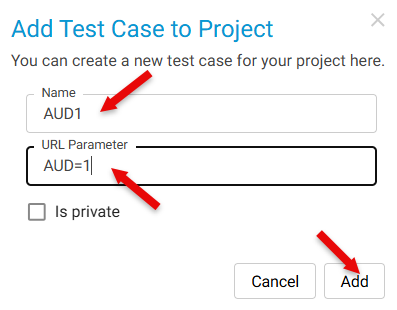
Repeat as needed for all unique values.
All created test cases will appear in the Test Case dropdown list.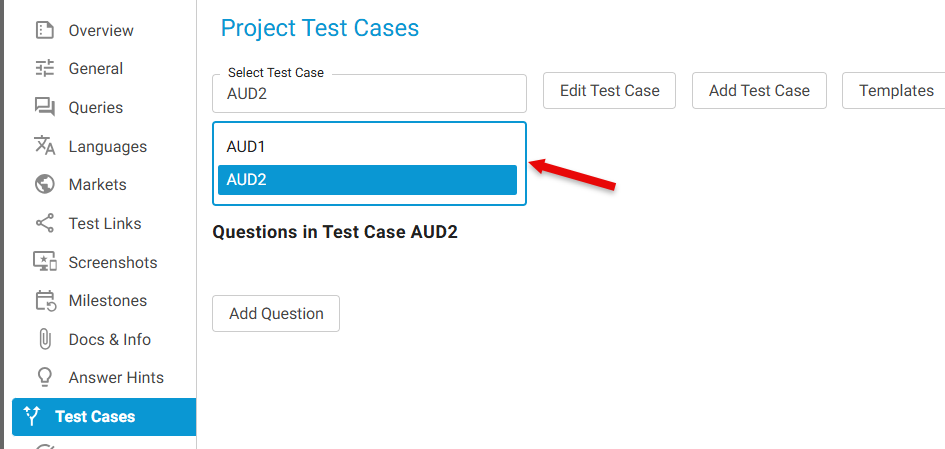
Once Languages, Markets, and Test Cases are created:
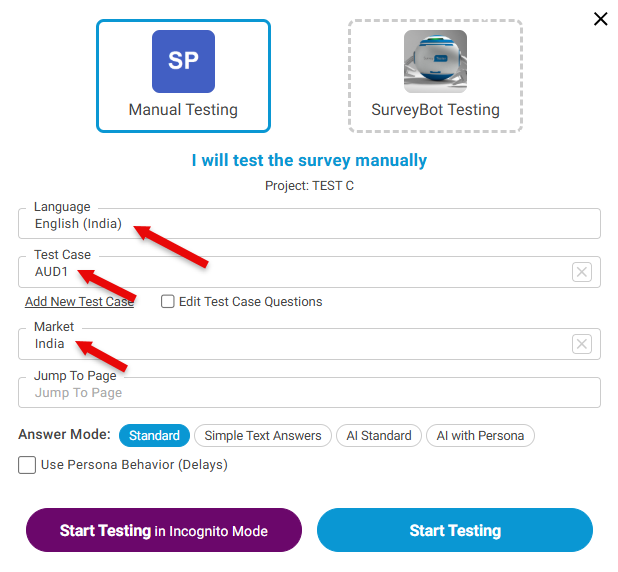
Open theTest Survey WindowSelect:TheLanguageTheMarketAnyTest Caseas needed
Start testing with fully populated unique parameter combinations